
X Following Tab Not Working
The X following tab not working usually comes down to simple issues like an outdated app, cached data, or a temporary glitch on X’s servers.
A recent post on X from user @suelovespizza describes how the app keeps opening on the “For You” tab and the “Following” tab takes a very long time to load, even after trying multiple times over two days.
In many cases, the issue appears suddenly: the following feed goes blank, stops after a few posts, or only shows a handful of accounts even when hundreds are followed.
This can feel like the timeline is broken, especially for people who rely on X to track news, crypto moves, or live match updates in real time.
From a practical point of view, it is less about a user’s settings being “wrong” and more about the app or backend not refreshing correctly.
There are also periods when X experiments with how the “For You” and “Following” timelines work, which can make the following tab feel unreliable or less chronological.
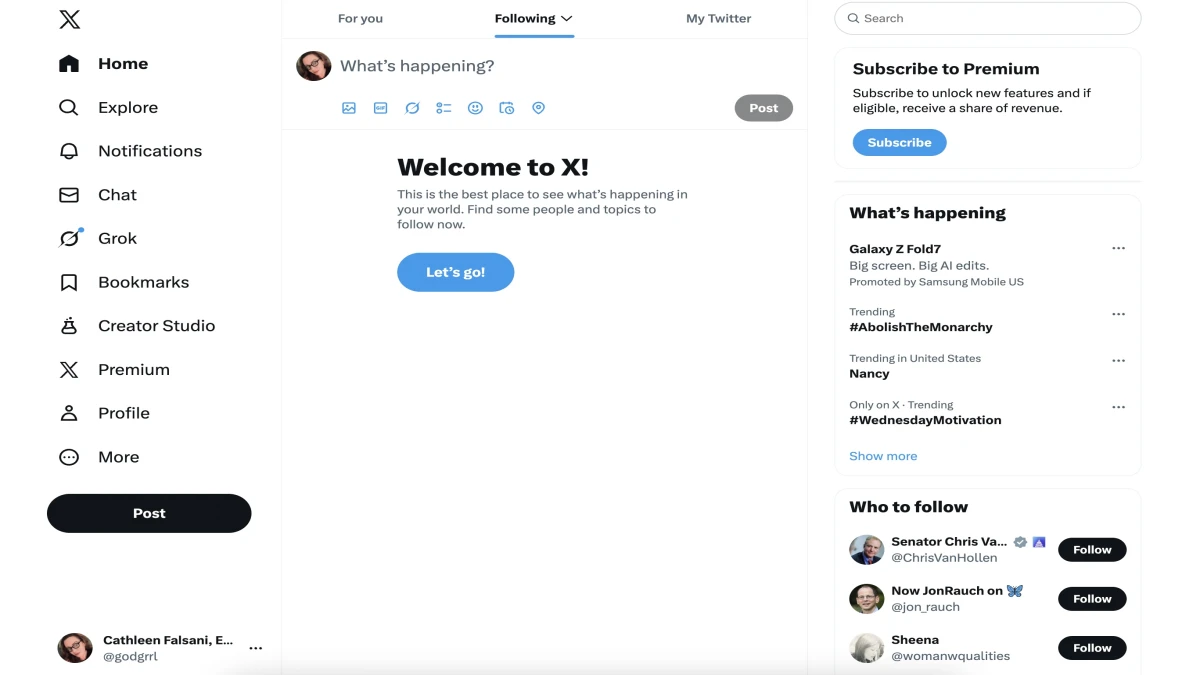
Some users report that the feed keeps jumping back to “For You” or shows only “popular” posts instead of recent ones, especially on X Pro columns.
For anyone monitoring fast news cycles, this sort of behavior can make the platform feel unstable, even when nothing is technically “down.”
Common Reasons the Following Tab Breaks
The X following tab often stops working because of one of a few predictable triggers: app glitches, old versions of the app, network issues, or temporary server problems. When any of these hit at the wrong time, the feed may load only a few posts, show nothing at all, or refresh into the wrong timeline.
Some of the most frequent causes include:
-
App not updated to the latest version, especially after a new rollout.
-
Cache buildup or corrupted app data on Android or iOS.
-
Weak or unstable internet connection, switching between Wi‑Fi and mobile data.
-
Short-term X server outages or timeline bugs affecting specific regions or accounts.
Reports on community forums regularly describe following feeds stuck on six–eight accounts, blank timelines, or feeds that stop after a few tweets even though more accounts are followed. This pattern suggests that the problem is normally technical rather than a punishment or shadow ban.
Quick Fixes That Work Right Now
The fastest way to fix the X following tab not working is to update the app, clear its cache, and restart the device, then reopen X and switch back to the Following tab. These steps usually resolve most cases in under a minute when the issue is local to the device rather than on X’s servers.
A practical sequence that aligns with current troubleshooting guides looks like this:
-
Open the Play Store or App Store, search for “X”, and install any pending update.
-
On Android, go to Settings → Apps → X → Storage → Clear cache, then Force stop.
-
Restart the phone to clear out temporary glitches and reopen the X app.
-
Switch to the Following tab again and, if needed, refresh by pulling down once or twice.
If the following tab still does not show posts, it is worth checking an outage tracker like Downdetector for X; a spike in reports usually points to a wider issue that only X can fix, and the realistic approach then is to wait a couple of hours and try again.
When It Is Probably an X Outage
When the X following tab is not working across multiple devices, browsers, and networks at the same time, the most likely cause is a server-side outage or a platform bug. In these moments, clearing cache and reinstalling the app will not change much because the problem sits on X’s side.
Signs that point to a bigger outage include:
-
The following timeline is blank or half-loaded for many users at once.
-
The site keeps resetting to “For You” instead of “Following” after every refresh.
-
X Pro or desktop columns lose their chronological order and start showing algorithmic posts instead.
Community posts in early January 2026 describe feeds that only show a handful of accounts or stop after a small batch of tweets, even when the same accounts display normally in search or on other platforms. In those situations, users often contact support multiple times and receive generic replies, which underlines how slow official acknowledgment can be.
Practical Tips for a Smoother Following Feed
The most reliable way to keep the following tab working smoothly is to treat it like any other critical app: keep it updated, clean, and monitored for changes. Regularly checking for app updates and avoiding cluttered cache can prevent many of the everyday glitches that break the feed.
A few practical habits that help:
-
Update the X app whenever a new version appears, especially after interface changes.
-
Clear cache periodically on Android, or offload and reinstall the app on iOS when the feed feels sluggish.
-
If the feed looks empty, quickly test on another device or browser to see whether it is an account issue or a wider bug.
-
Use timeline options like “Recent” where available to force a more chronological view when the algorithm feels off.
For people who depend on the following tab for work journalists, social media managers, or traders it is sensible to have a backup plan like third-party analytics tools or web-based monitors when X’s own timeline behaves unpredictably.
Disclaimer: This information about the X following tab not working is for general guidance only and may change as X updates its app or systems. Always verify critical account or service issues through official X support channels or in‑app notifications.