
Instagram Adds Custom New Year Effects
Instagram’s New Year effects sit inside tools you already use: Stories, fonts, stickers, comments, and Edits, so you don’t need any new app or secret menu to find them. The hero piece is a new glitter effect over a stylized font that shows up in the Stories text options and is clearly built for “Happy New Year 2026” posts, countdowns, and “new year, same me (but trying)” updates.
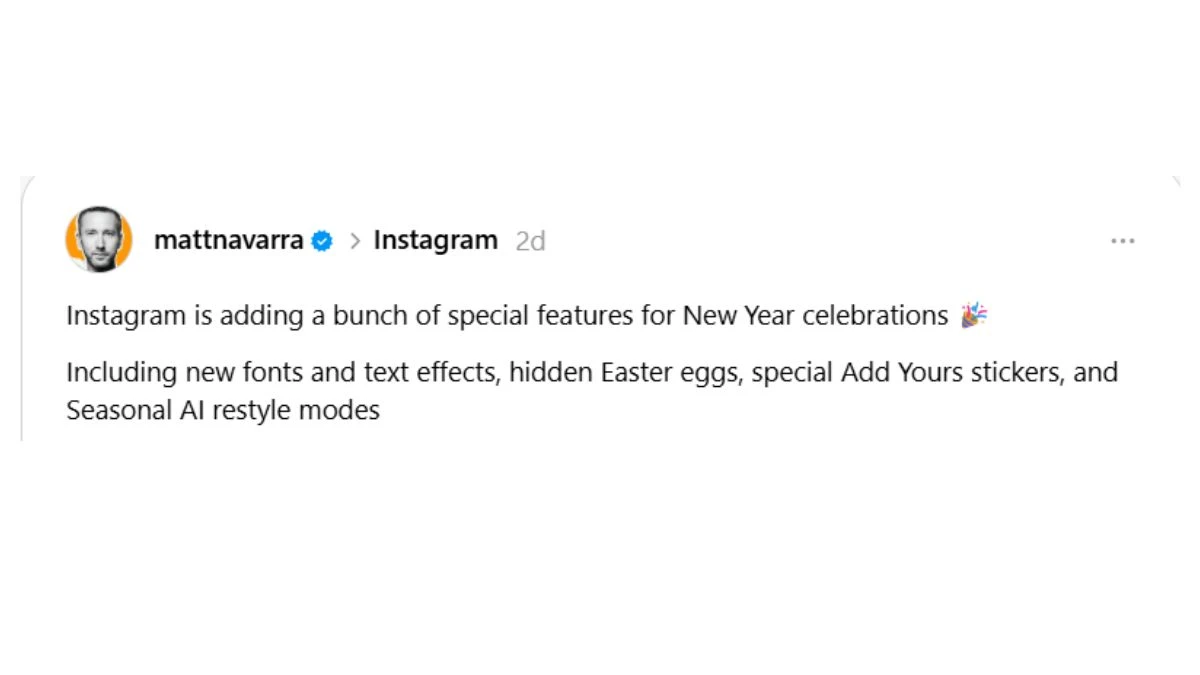
On top of that, Instagram has:
-
Limited‑edition effects and emojis that pop when you type certain New Year keywords in Notes or Story replies, changing the background colour or adding sparkly highlights automatically.
-
A special “EOY” (end of year) Add Yours sticker design, so people can join trends like “Best moment of 2025” or “First photo of 2026” with a consistent visual look.
-
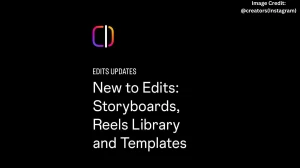
Extra effects inside the Edits app, including advanced object segmentation, so you can separate a subject from the background and then layer in fireworks, glitter, or text in a cleaner way.
-
New AI Restyle presets that lean festive, celebratory, and reflective, perfect for recap Stories, photo dumps, or “2025 in 10 slides” highlight reels.
In practice, it feels like Instagram is trying to keep you inside its own ecosystem instead of sending you to a separate editing app every time you want nice New Year visuals. And honestly, for quick Stories and Reels, it works: open, tap, decorate, post.
How to Use New Year Effects in Stories?
You use the New Year effects in Stories the same way you normally post, add your photo or video, then tweak text, stickers, and styles, keeping an eye out for the new glitter font, “EOY” Add Yours sticker, and AI Restyle presets. The flow is simple enough that even on patchy mobile data at 11:58 p.m., you can still push out something that feels polished.
Here’s a straightforward way to build a New Year Story:
-
Open Instagram, tap the + and choose “Story” (or swipe right from your feed).
-
Capture a new clip or pick a photo/video from your gallery.
-
Tap the text icon (Aa) and scroll through fonts until you see the New Year glitter style; type your wish or countdown line and adjust size/position.
-
Tap the sticker icon and look for:
-
“Add Yours” and select the limited “EOY” design if you want people to respond with their own posts.
-
Extra emojis or animated stickers around “New Year”, “2026”, fireworks, etc.
-
If you have access to AI Restyle in Stories, tap the Restyle/AI option and try one of the festive or reflective presets on your image for a themed look.
Post to “Your Story” or “Close Friends” depending on how chaotic the party is.
How to Use New Year Effects in Reels?
For Reels, you use New Year effects mostly through text styles, stickers, and edits record or upload your vertical video, then layer the New Year font, effects from Edits, and festive Restyle looks if available. The goal is not to overcomplicate it; short, clean Reels with one or two standout visual touches tend to perform better than overloaded edits.
A simple Reels workflow:
-
Record clips of your “last day of 2025” or “first morning of 2026” moments.
-
Open the Reels editor and trim to 10–20 seconds—enough to tell a quick story.
-
Add text using the New Year glitter font for captions like “2025 recap in 5 seconds” or “Hello, 2026.”
-
If you’re using the Edits app, apply advanced object segmentation to keep your face sharp while the background gets a soft, dreamy glow or sparkly overlay.
-
Finish with one Restyle‑inspired look or consistent colour tone, so it feels cohesive instead of chaotic.
One relatable pattern showing up in New Year Reels: quick “reverse” recaps. People stack 1‑second clips from different months, add a short line in the glitter font (“This year was a lot”), and let the visuals do most of the talking. It’s simple, slightly emotional, and very shareable basically what Instagram wants on the biggest posting night of the year.
Disclaimer
New Year effects, fonts, stickers, and AI tools on Instagram may change, be tested in limited regions, or roll out gradually. Always check the latest version of the app and official Instagram help or announcements for current availability, names of effects, and exact features before relying on this information.