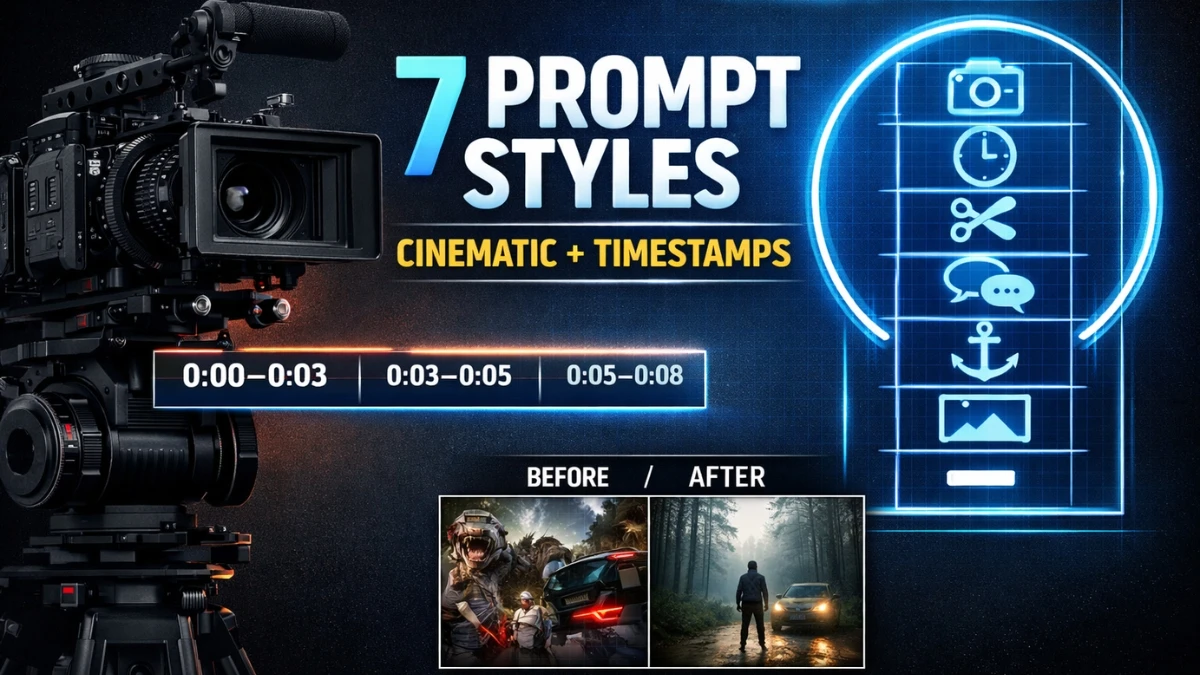

7 Prompt Styles to Create Any AI Video (With Cinematic Control): Camera Moves and Timestamp Control
If you’ve ever sat there rewriting prompts for hours, adding fancy adjectives, stacking “ultra cinematic” ten different ways, and still ended up with a weird, wobbly result… you’re not alone.
Here’s the truth I learned the hard way (and what your transcript explains perfectly): the best AI videos usually aren’t made with complicated prompts. They’re made with simple, clear, intentional prompts, the kind that AI video models actually respond to.
Below are the only 7 prompt styles you really need to create almost any AI video. I’ll keep this practical and beginner-friendly, using the same ideas and examples from the conversation you shared (soldier trench shots, astronaut sequences, cutscene transitions, anchor details, image prompting, and negative prompts).
The biggest takeaway from your transcript is this: AI video models reward clarity. The moment your prompt turns into a messy paragraph full of competing actions, you lose control.
Use these seven styles like tools:
- Cinematic for camera feel
- Timestamp for sequence
- Cutscene for coverage
- GPT prompts for fast drafts (with human correction)
- Anchors for consistency
- Image prompts for quality and repeatability
- Negative prompts for clean results
Join This Channel for Trending AI Image Prompts - CLICK HERE
1) Cinematic Prompts (Control the Camera, Not Just the Scene)
A cinematic prompt is all about how the viewer experiences the scene. You’re not only describing what’s happening, but you’re directing the camera like a filmmaker. This style works best when you want the shot to feel intentional: calm, intense, intimate, chaotic—whatever mood you’re after.
What to include in a cinematic prompt
- Camera style: static, handheld, slow zoom, orbit, pan, tilt
- Mood + lighting: muted colors, dusk light, harsh daylight, foggy
- Environment: trench, street, alien planet, village square
- Action: simple, readable movement (AI handles this best)
Your example prompt (Cinematic)
- STATIC CAMERA. THE SOLDIER TAKES OFF HIS HELMET, CONTEMPLATING, INSIDE A WORLD WAR I TRENCH. DREARY DAY, MUTED COLORS
Why it works: the camera instruction is clear (“static camera”), and the action is simple (taking off the helmet, contemplating). That combination usually produces more stable, believable motion.
Tip: If you want a more emotional result, keep the camera steady. Movement is powerful, but stillness can feel more “cinema” than chaos.
2) Timestamp Prompts (Direct the Video Like a Timeline)
Timestamp prompting is basically storyboarding inside your text. Instead of hoping the AI guesses the sequence, you tell it exactly what happens in each segment. This is one of the fastest ways to get control, especially for 6–10 second clips where you want multiple actions without randomness.
What timestamp prompts are great for
- A sequence of reactions (look → notice → respond)
- A camera movement plan (zoom → pan → tilt)
- Multi-step actions that need to happen in order to
Your example prompt (Timestamp)
- [0:00–0:03] CAMERA SLOWLY ZOOMS ON THE ASTRONAUT CALMLY BREATHING.
- [0:03–0:05] CAMERA PAN DOWN, HE SLOWLY LOOKS DOWNWARD, EYES WIDENING SLIGHTLY. He holds a transmission device at his waist.
- [0:05–0:08] SLOW CAMERA TILT UP.
Why it works: it’s structured, specific, and each action is easy to animate. You’re not asking the AI to do ten things at once.
Tip: Keep each timestamp segment focused on one main action plus one camera move. That’s the sweet spot.
3) Cutscene Prompts (Make One Video Feel Like Multiple Shots)
Cutscene prompting is how you create that “edited film” vibe, where the video switches angles mid-clip.
You can do this with simple words like:
- “Cut to…”
- “Smash cut to…”
- “Close-up on…”
- “Wide shot… then cut to…”
When to use cutscenes
- When you want the video to feel like a real scene with coverage
- When one angle isn’t enough (wide → close-up → detail shot)
Your example prompt (Cutscene)
- THE ASTRONAUT TURNS AND WALKS TOWARDS THE SPACESHIP, CUT TO THE BOOTS OF THE ASTRONAUT WALKING ALONG THE TERRAIN. Cinematic film, muted colors.
Why it works: the second shot (boots walking) is connected to the first shot (astronaut walking). That keeps the AI consistent. In the transcript, there’s a warning: if you cut to something too different, the model can drift and change style.
Tip: Cut to something that belongs to the same moment, hands, boots, face, device, doorway, footsteps. Those cuts stay consistent more often than “cut to inside a monster mouth” type jumps.
4) GPT Prompts (Use AI to Write Prompts—But Don’t Trust It Blindly)
This is the “meta” method: you use a language model (like ChatGPT) to generate longer prompts for your video model.
This can be helpful when:
- You want richer detail (lighting, SFX, camera style)
- You’re making a cinematic scene and want a complete prompt quickly
But there’s a catch from your transcript: prompt guides rarely explain limitations, and GPT will happily request things AI video struggles with, especially crowds, complex choreography, and too many independent actions.
Your example prompt (GPT style)
- WIDE SHOT, HANDHELD CAMERA SHAKING SLIGHTLY TO CAPTURE THE CHAOS OF A MEDIEVAL VILLAGE SQUARE... (crowd shouting, throwing debris, guards restraining, lots of sound cues, dynamic motion, etc.)
Why it can fail: big crowds doing lots of different things often turn into synchronized weirdness or blurry “blob people,” exactly like described in your transcript.
How to fix GPT prompts (simple upgrade):
Instead of “crowd shouting and throwing debris,” switch to something AI handles better:
- “Townsfolk form a tight circle, staring in silence.”
- “A few figures step forward slowly, tension rising.” You still get fear and pressure, without asking for 30 people to animate perfectly.
5) Anchor Prompts (Stop the AI From Changing What Matters)
Anchor prompting is what you use when the AI keeps “improving” your character… by accidentally changing them.
This happens constantly with:
- facial features
- clothing details
- tattoos/armor
- props in hands
- textures (ash, embers, mud, scars)
Anchors are simple reminders: “Keep this detail.”
Your example prompt (Anchor)
- HE HAS A HAPPY, JOYFUL EXPRESSION AS HIS EYES GLOW RED. HE IS COVERED WITH RED EMBERS AND ASH
Why it works: the anchor is the “embers and ash.” You’re telling the AI: don’t lose this visual identity while changing expression.
Tip: Anchors work best when they’re concrete and visual:
- “scar across left cheek”
- “blue geometric tattoo on right shoulder (no armor on right shoulder)”
- “gold pendant stays visible on chest.”
- “Helmet stays clipped to belt.”
6) Image Prompts (The Shortcut to Beauty and Consistency)
This part is huge in your transcript: the most stunning AI videos usually come from image-to-video workflows.
Instead of relying on text to invent everything, you:
- generate or choose a reference image
- animate it with a simple motion prompt
This is how creators get those clean, “impossible” surreal shots consistently.
Your example prompt (Image-based idea)
- The giant giraffe wades in the ocean and eats leaves from the tree
This is a perfect image-prompt concept, surreal but simple. One subject, one unusual environment, one readable action.
Tip: With image prompting, keep your motion prompt short and direct:
- “The giraffe slowly blinks as waves roll behind it.”
- “It gently turns its head and chews the leaves.”
- Simple direction = smoother animation.
7) Negative Prompts (Tell the AI What NOT to Do)
Sometimes it’s easier to get what you want by clearly saying what you don’t want.
Negative prompts are great for:
- removing unwanted objects (windows, text, logos)
- stopping unwanted sound effects (gunshots, yelling)
- preventing weird distortions (extra limbs, warped faces)
Your example prompt (Negative)
- AN ASIAN ASTRONAUT INSIDE A MOON HABITAT. SELFIE CAMERA ANGLE, SHOT FROM AN EXTENDED ARM. VLOGGING ABOUT HER LIFE WHILE TAKING CARE OF A GREENHOUSE ON A MOON COLONY. Muted colors, cinematic film. No windows
Why it works: “No windows” is crystal clear. You’re not over-explaining the wall—you’re just blocking the thing that keeps appearing.
Tip: Use negative prompts like guardrails, not a full essay:
- “no windows”
- “no subtitles”
- “no extra people”
- “no shaking camera”
- “no gunshots”
Putting It All Together: The “Simple Prompt Stack” That Works Everywhere
When you’re building AI video prompts fast, think in layers:
- Scene + subject (what we’re looking at)
- Camera instruction (how we’re seeing it)
- Action (what happens)
- Anchors (what must stay consistent)
- Negative constraints (what must not appear)
You don’t need all five every time. But the more control you want, the more you stack intentionally.
Video Credits: Tao Prompts (YouTube Channel)
Disclaimer: This article is for educational and informational purposes only. The prompts and techniques shared are based on practical experimentation and personal experience with AI video tools, and results may vary depending on the model, version, and settings used. All examples are illustrative and meant to help creators understand prompt structure, not to guarantee specific outputs. AI tools evolve rapidly, so always test and adapt prompts to your own workflow.